In this article, we will learn how to fix the missing dependencies and broken packages using the apt-get command. Note that, we have run the commands and procedure mentioned in this article on a Debian 10 system. The same procedure can be followed in Ubuntu and older Debian versions.
We will use the command-line Terminal for trying the solutions and fixing the problem. To open the Terminal application in Debian, hit the super key on the keyboard and search for it using the search bar that appears. When the search result appears, click on the Terminal icon to open it.
Using apt-get to fix missing and broken packages
Apt-get is a Terminal based package management tool used for installing, upgrading, and removing packages. Along with these features, it also has flags that can be used for fixing missing dependencies and broken packages.
Use the “fix-missing” option with “apt-get update” to run the updates and ensure the packages are up to date and there is no new version available for the packages.
$ sudo apt-get update --fix-missing
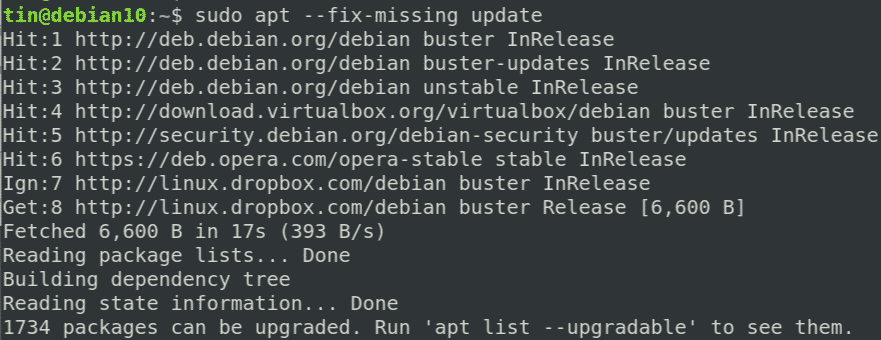
Once you are done with the update, execute the below command in order to force the package manager to find any missing dependencies or broken packages and install them.
.
$ sudo apt-get install -f

Another approach to solving the broken package issue via apt-get is to edit the “/etc/apt/sources/list” file and adding sites with newer versions of packages available. Then running the “apt-get update” command to update the repository list.
If the above method does not fix the issue of broken dependencies and broken packages and still you are receiving the error, then try the following methods.
